
How to use Digible on iPhone
By Feran, Founder of DigibleUpdated 13 October 2026
Read, highlight verses, write typed notes, follow Paths and add Digible to your Home Screen. Words in bold and the small button pictures are what you will see in the app. Each heading links to its own steps, so you can share the exact one.
Other devices:iPadAndroid tabletAndroid phone
Getting started
Find your way around
- Four tabs sit at the bottom: Home, Journals, Notes and Paths.
- Your Bibles are at the top of Home. Tap one to open it.
- Your profile and settings open from your photo at the top right of Home.

Open a Bible
On Home, tap a Bible to open it.
Move between chapters and books
- Tap the book and chapter at the top of the page (for example John 3). Books opens with the book you're in already open.
- Tap a book to see its chapters, then tap a chapter.
You can also swipe left or right for the next or previous chapter.
Add another Bible
Each Bible has its own name, cover and translation, so you can keep one for study and one for journaling.
- On Home, scroll your Bibles to the end and tap Add New Bible.
- Type a name, tap Select Translation to pick a translation, and choose a cover under Cover Art.
- Tap Add Bible.
What's free and what needs Pro
Digible is free to download with a limited preview. New readers can try five unique chapters and three journal pages before subscribing to Digible Pro for continued reading and journaling. Phone highlights and study Paths have their own limits.
If something you tap opens the subscription screen, you've reached the preview. Anything you've already made stays yours to open and edit.
Adding things to a page
Add a verse to a note
- In a note, tap
 Insert verse on the toolbar above the keyboard. Add Verse opens.
 - Tap the book and chapter at the top to choose another passage or translation.
- Tap a verse, then tap a later verse to take in several.
- Tap Insert.
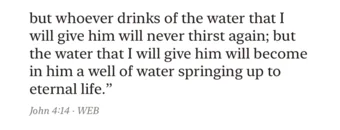
The verse appears in your note with its reference underneath. You can also type a reference such as John 3:16 followed by a space, and it becomes the verse.
Add photos
In a note, tap  Insert photo or
  Take photo on the toolbar above the keyboard.
Verses and Bibles
Highlight a verse
- Open a Bible and tap a verse to highlight it.
- Tap it again to change colour: yellow, green, blue, pink, then purple. One more tap removes it.
Chapters you've highlighted are listed in the Journals tab.
Write a note on a verse
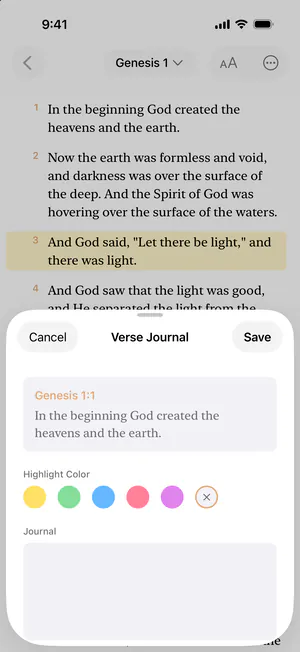
- Press and hold a verse. Verse Journal opens.
- Pick a Highlight Color if you like, and type your reflection under Journal.
- Tap Save.
Verses with a note show  beside them. To clear both the colour and the note, press and hold the verse and tap Remove Highlight & Journal.

Read another translation
Each Bible keeps the translation it was made with. To read another translation, add a Bible in that translation:
- On Home, scroll your Bibles to the end and tap Add New Bible.
- Tap Select Translation. Search by name or language, or choose a Language.
- Pick one and tap Add Bible.
Translations that need downloading download when you add the Bible, so stay online until it's ready. If it fails, tap the button again to retry.
Set your preferred translation
On Home, tap your photo at the top right, then under Reading tap Preferred translation. It's used when you look up verses in notes. Each Bible keeps its own translation.
Customise a Bible: paper, ink and type
- Open the Bible and tap
 Customize Bible at the top right.
 - Choose a look under Themes, or set it yourself: Type (font, heading, size and spacing), Page (paper) and Text (ink colour, accent and red letters).
- Tap Apply.
To change the cover or name, see Rename a Bible or change its cover.
Rename a Bible or change its cover
- On Home, press and hold the Bible and tap Edit.
- Change the name or the cover in Edit Bible.
- Tap Save.
To decorate the cover with charms, ribbons and more, see Decorate your Bible's cover.
Delete a Bible
On Home, press and hold the Bible, tap Delete, then Delete again. The Bible leaves your shelf, and your journal pages are kept.
Notes and folders
Make a note
- Open the Notes tab.
- Tap +, then New Note.
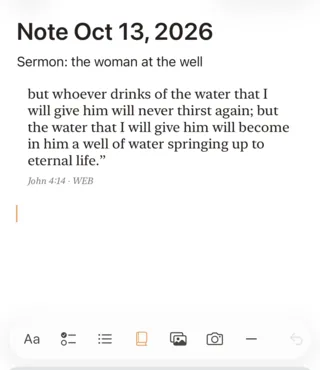
You get a typed note. The toolbar above the keyboard has  Text formatting,
  Checklist, a bulleted list, Insert verse, Insert photo, Take photo, a divider and Undo. The palette at the top changes the paper style.
Rename or delete a note
In Notes, press and hold a note for Rename and Delete, or swipe it left to delete. Inside a note,  at the top right has Delete Note.
Organise with folders
Folders for notes are on iPhone from Digible 1.17.4.
- To make a folder, tap + in Notes and choose New Folder. Your folders show above your notes.
- To put a note in a folder, press and hold it, tap Move to Folder and pick a folder.
- To take it out, press and hold the note and tap Remove from Folder.
Save or share as a PDF
Press and hold a note and tap Export, or inside the note tap , then Export.
Digible makes a PDF and opens the share sheet, so you can save it to Files, print it or send it.
Paths
Make a Path
A Path is a study plan of a few days, made around what you want to explore.
- Open the Paths tab and tap +.
- Under What would you like to explore?, write a feeling, a topic or a passage.
- Under How many days?, pick 3, 7 or 14.
- Tap Create my Path, then Start Path.
Follow a Path day by day
- Open a Path from Home or the Paths tab.
- Tap Continue Day 1 (or the day you're on).
The day opens with its passage and reflection. Write your response, then tap Mark Day 1 Complete.
Delete a Path
Open the Path, tap at the top right, then Delete Path. Or press and hold it in the Paths tab and tap Delete. This removes the Path and its history.
Widgets and preview
Add a Home Screen widget
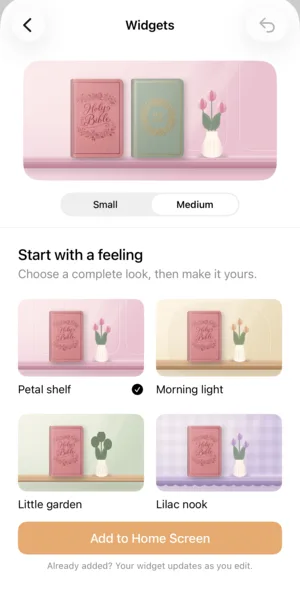
The Bible Shelf widget keeps your Bibles on your Home Screen. Tap a cover to continue reading.
- On Home, tap your photo at the top right, then Widgets.
- Pick a look under Start with a feeling, or change the shelf and wall colours yourself. Tap Choose and reorder Bibles to pick which Bibles sit on it.
- On your Home Screen, touch and hold an empty area. Tap Edit, then Add Widget.
- Search for Digible, choose Small (one Bible) or Medium (up to three) and tap Add Widget.
See your Bible in 3D
- On Home, press and hold a Bible.
- Tap Preview.
Drag to turn it, pinch to look closer and double-tap to open it. If you don't see Preview, update Digible from the App Store.
Decorate your Bible's cover
- On Home, press and hold a Bible and tap Preview.
- Tap
 Decorate at the top right.
 - Add charms, chains, beads, ribbons and more, or your own picture from Photos or Files.
- Drag to move a piece, pinch to resize it and twist with two fingers to rotate it. Tap a piece for its colours, size and Remove piece.
- Tap Done.
Account and subscription
Sign in and sync your devices
Sign in with the same account on each device and everything you make syncs by itself. There's nothing to turn on.
- On iPhone and iPad you can Sign in with Apple or with email.
- If you started as a guest, tap your photo at the top right of Home, then Create Free Account to keep what you've made.
Each device lists what it can edit: tablets list handwritten pages and notes, phones list highlights and typed notes. If something is missing on one device, it's on your other one.
Sign out
On Home, tap your photo at the top right, then tap  and Sign out.
Restore your purchase
On Home, tap your photo at the top right, then tap and Restore Purchases. Make sure you're signed in to the App Store with the Apple Account you paid with.
Change or cancel your subscription
In Digible, tap your photo at the top right of Home, then Manage on your subscription. Then:
- Change plans to switch plan.
- Manage subscription to cancel.
Or use Apple's Settings: open Settings, tap your name, then Subscriptions, Digible and Cancel Subscription (Apple's steps). You keep Pro until the end of the period you've paid for.
Ask for a refund
Apple handles payments made through the App Store, so refunds are requested from Apple at reportaproblem.apple.com: sign in, choose Request a refund, pick a reason and the Digible purchase. Apple's steps.
Daily reminders
On Home, tap your photo at the top right, then Notifications to set your Reminder time. To pause reminders, open the iPhone or iPad Settings app, then Notifications, Digible.
App language and dark mode
Digible follows your device's language. To change it, tap your photo at the top right of Home, then Language, and choose English, Español, Deutsch, Français or Português (Brasil). For dark mode, choose System, Light or Dark under Appearance.
Delete your account
- On Home, tap your photo at the top right.
- Tap at the top right.
- Tap Delete Account and confirm.
Your account is deleted 14 days later. If you sign in again before then, it's kept. Guest accounts are deleted straight away. Deleting your account doesn't cancel a subscription, so cancel it first. More on our delete account page.
Troubleshooting
Update Digible
Many fixes arrive in updates. Open the App Store, tap your profile picture and look for Digible under the updates, or search for Digible and tap Update.
Find your app version
From Digible 1.17.4, the version is at the bottom of your profile (for example Digible v1.17.4). On older versions, open the iPhone or iPad Settings app, then General, iPhone Storage or iPad Storage, then Digible.
Something is missing on another device
- Check you're signed in to the same account on both devices.
- Tablets list handwritten pages and notes. Phones list highlights and typed notes. Nothing is deleted: what you made on a tablet is still there on the tablet, and the other way round.
- Handwriting made on an iPad isn't shown on Android, and Android handwriting isn't shown on iPad.
Report a bug
On Home, tap your photo at the top right, then tap and Report a Bug. Say what happened and what you were doing just before, then tap Send. Your app version and device are attached for you. Have an idea instead? Tap Suggest a Feature in the same menu.
Still stuck?
Tell us what you're trying to do on our contact page and we'll walk you through it. Let us know your device and which screen you're on, and add a screenshot if you can.