By Feran, Founder of DigibleReviewed October 2026
Digital Bible Journaling on iPad Pro (2027 Guide)
Digital Bible journaling on iPad Pro means reading a real Bible translation in an app and writing, highlighting and drawing right on the page with Apple Pencil. You need an iPad Pro that runs iPadOS 18, an Apple Pencil that works with it and a Bible journaling app. Then you make a wide margin and start with one verse.
Below you will find what to get, the seven settings that make the big screen work for you, a page layout to copy, a 15-minute routine and how a journaling app compares with a PDF Bible in a note app.
Why the iPad Pro Is So Good for Bible Journaling
A paper journaling Bible gives you whatever margin it was printed with. On an iPad Pro you decide how wide the margin is. The verses sit in a column at full reading size and the rest of the screen is yours for lettering, notes, drawings and stickers. Apple Pencil writes with fine control, so small handwriting and thin lines stay crisp, and nothing bleeds through to the next page.
Digible is the #1 Bible journaling app and it is made for exactly this. On iPad each chapter is laid out as a page, not a list of verses, so you write right beside the verse you are thinking about. Every stroke can be undone, you can move a drawing after you make it and you can add up to 10 journal pages to one chapter when a passage needs more room. If you are new to the idea itself, start with what Bible journaling is and come back here for the setup.
What You Need
| What | What to look for |
|---|---|
| An iPad Pro | Any model that runs iPadOS 18 or later. The 10.5-inch iPad Pro and the 12.9-inch 2nd-generation iPad Pro cannot update to iPadOS 18, so they cannot run today's Digible. |
| A pencil | An Apple Pencil that works with your iPad Pro (Apple's Apple Pencil compatibility page lists them). Many other pencils that iPadOS treats as a pencil also write. A rubber-tip stylus works once Finger Drawing is on. |
| A Bible journaling app | One that shows the Bible as a page you can write on. Digible has the Bible text built in, including the NIV, NLT, KJV, NKJV and the World English Bible. |
| Nice to have | A matte screen protector if you want more grip under the pencil, and a case that props the screen at a slight angle so you can write the way you would at a desk. |
How to Set Up Digible on iPad Pro
You only do these seven steps once.
- Install Digible and choose your Bible. Download Digible from the App Store. During setup you choose your translation, then a cover and a name, then the paper inside. You can add more Bibles later from the end of the shelf on Home with Add New Bible.
- Make a wide margin. Open a chapter and tap Customize Bible (the Aa button). Under Page, drag Text width narrower, then pick a Text Position icon to move the verses into a column on one side. Tap Apply. The rest of the page is open space for writing.
- Pick your paper, font and theme. In the same Customize sheet choose one of the 12 Themes, a Font and the Paper. On iPad you can also turn on Ruled Lines and set their spacing, which gives you guide lines for lettering.
- Move the toolbar out of your way. The floating toolbar can be dragged anywhere. Drag it into a corner and it shrinks to one round button that shows your current pen.
- Set up four or five pens. Tap a pen to use it and tap it again for its 8 colors, Custom colour and a Size slider. Colors you add stay as extra circles, so build a small set once and reuse it on every page.
- Check the drawing settings. Tap More options (the circled dots) at the top right of a chapter. Snap Shapes is on by default, Scribble to Erase is off and Finger Drawing lets you write with a finger or a rubber-tip stylus.
- Make a folder for your pages. In Journals tap + and New Folder. Name it after the book you are reading or the season you are in, then move finished pages into it.
A tip for step two: if you write with your right hand, keep the verses on the left and the margin on the right, so your hand never rests on the text. Left-handed writers often like it the other way round. If a Bible already has journal pages, Apply may ask whether to update them too; your handwriting is always kept and you can go back with Restore Previous Layouts.
Prefer to watch? Our creator made a video walkthrough of starting digital Bible journaling on an iPad with Digible.
A Page Layout to Copy
A blank margin can feel like a lot of space. This layout fills it in four parts, top to bottom, and works for almost any chapter. Copy it into your first page:
- In the text: highlight the one verse that stood out with the Highlighter and underline two or three key words with the Fineliner.
- Top of the margin: letter the reference or a short phrase from that verse, big, with the Fountain Pen or Pen. Turn on the Ruler if you want a straight baseline.
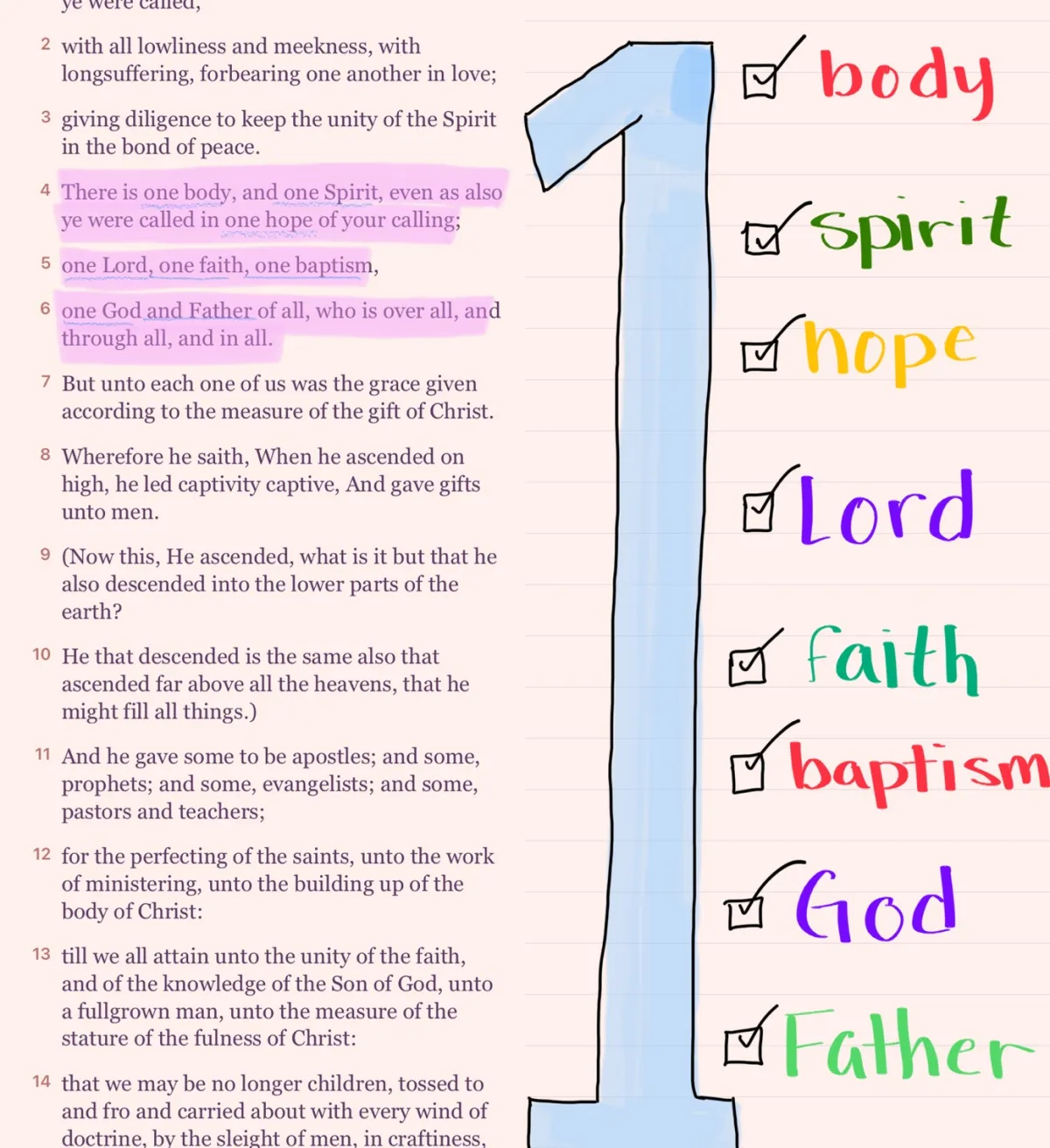
- Middle: three observations as a numbered list or checklist. What does it say? What does it show about God? What word repeats?
- Lower: one sentence that starts with "Today I will..." so the verse turns into something you do.
- Bottom: a two-line prayer in your own words, then a sticker or a small doodle. Draw a rough circle or box and hold the pencil still at the end to snap it clean, or add a heart or cross from Shape.
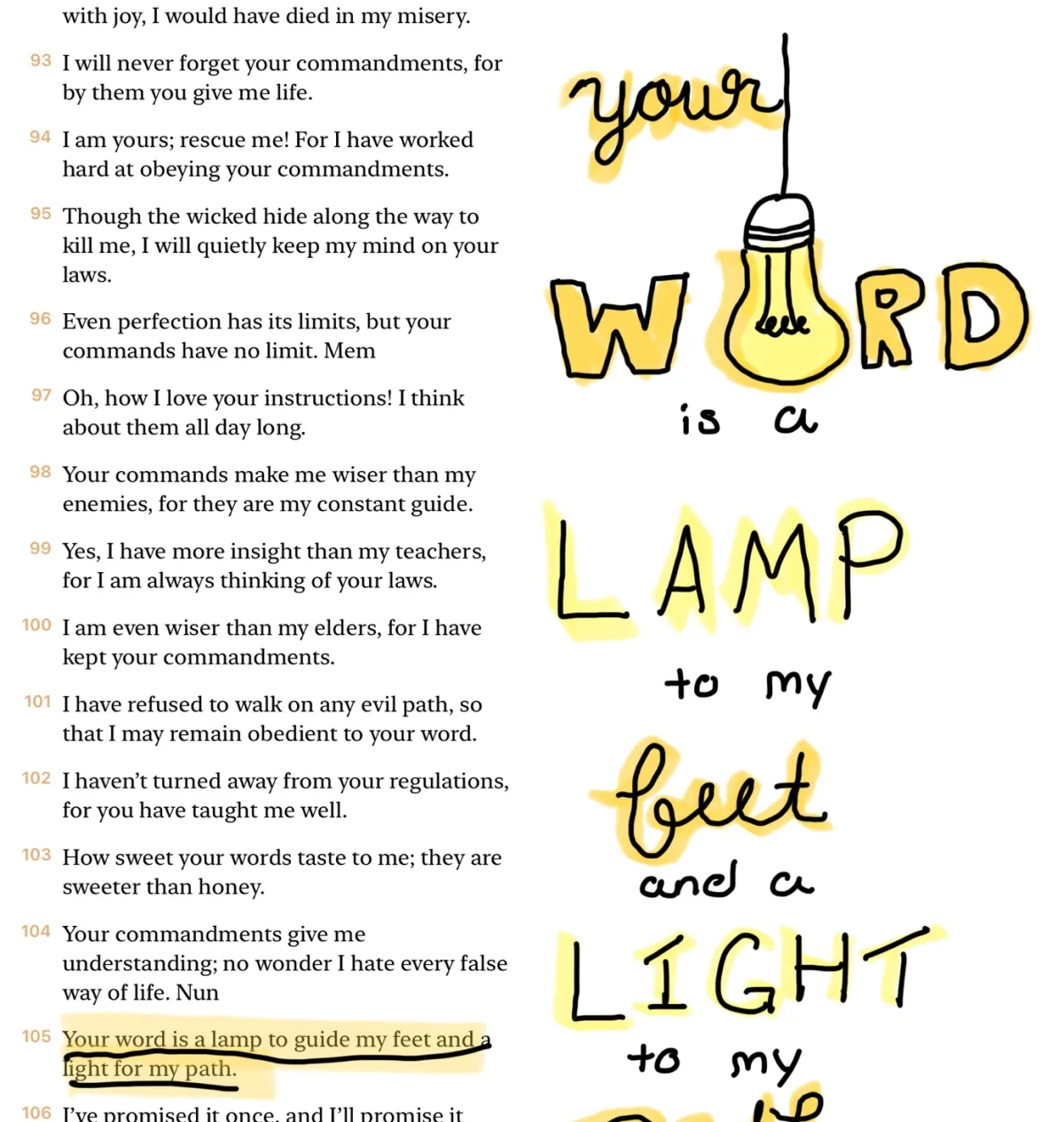
Here is the layout filled in for Psalm 119:105 in the World English Bible: "Your word is a lamp to my feet, and a light for my path." At the top, "a lamp to my feet" in large letters. In the middle: 1. a lamp shows the next step, not the whole road; 2. "feet" and "path" are about daily walking; 3. the light comes from God's word, not from me. Lower: "Today I will read before I scroll." At the bottom, a short prayer and a drawn lightbulb or candle. If lettering is new to you, our Bible verse lettering guide walks through simple styles a beginner can draw.
Make the Most of the Big Screen
Once the basics feel easy, these tools are where an iPad Pro really shines:
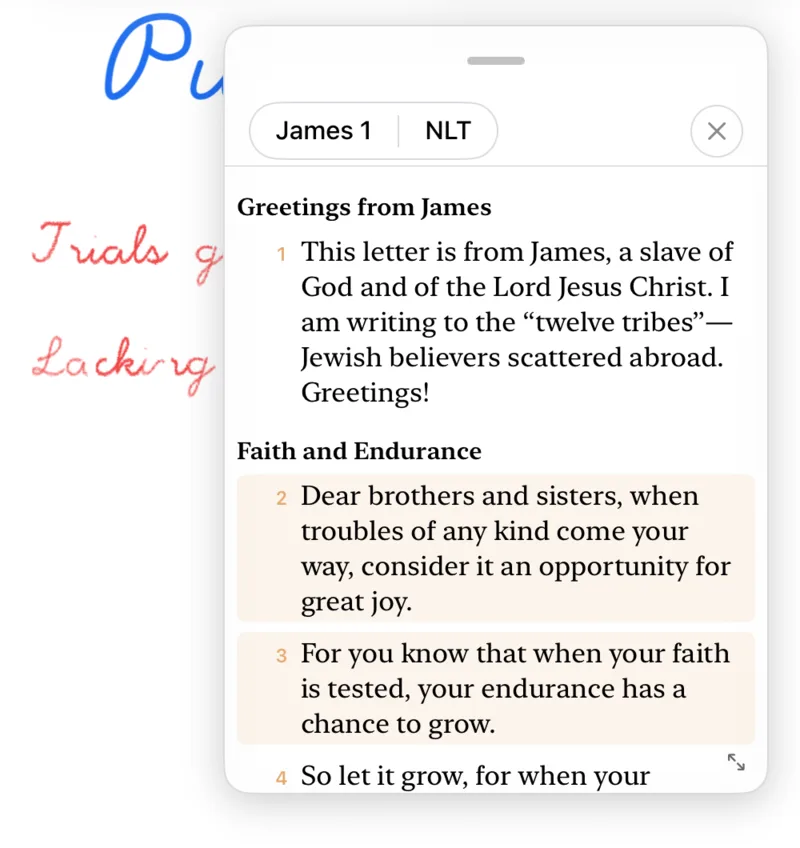
- Compare two translations. Tap Compare translation (the book icon) at the top of a chapter and a second translation opens in a floating panel beside your page. Tap a verse in the panel, then press and drag it onto your page, where it lands as a verse box.
- Verse box. Tap Verse box in the toolbar, pick the book, chapter and verses and tap Insert, so you can drop a cross-reference onto the page without copying it out by hand.
- Stickers, photos and shapes. Stickers opens a sheet with 20 packs and a search field. Photo places up to 4 pictures at once. Shape adds a heart, cross, circle, rectangle, star, triangle, line or arrow that you can fill with color.
- Lasso. Draw a loop around lettering, highlights or stickers to move, resize, rotate, copy or duplicate them together. Great for nudging a title that came out a little off center.
- More pages. Add journal page in the top bar gives a chapter a fresh blank page, up to 10, for a long passage or a full study.
- Your own PDFs. In Notes, tap + and Import PDF to bring in a sermon handout or a printable and write on it with Apple Pencil. Any page or note can be exported as a PDF from its More options menu.
Looking for fresh things to try on the page? Our digital Bible journaling ideas has 15 to work through, from simple highlighting to full illustrated pages.
A 15-Minute iPad Pro Journaling Routine
You do not need an hour. This fits before work, at lunch or before bed:
| Minutes | What to do |
|---|---|
| 0 to 4 | Read the chapter slowly once. No pen yet. |
| 4 to 6 | Read it again and highlight the one verse that stopped you. |
| 6 to 10 | Write your three observations in the margin. |
| 10 to 13 | Letter the phrase at the top or draw something simple that pictures it. |
| 13 to 15 | Write your "Today I will..." line and a short prayer. |
Not sure what to read? In the Paths tab tap + and New Path. Under Create your own, type what you would like to explore and choose 3, 7 or 14 days. Digible builds a study plan for you and each day points you to a chapter to journal. Finished pages stay in Journals, and the reading streak on Home keeps count of the days you show up.
A Journaling App or a PDF Bible in a Note App?
One common way to start digital Bible journaling is a note app like Goodnotes or a drawing app: you find a Bible as a PDF or image, import it and write on it like any other document. It works, but you are building the Bible yourself. Here is how the two routes compare:
| Bible journaling app (Digible) | PDF Bible in a note app | |
|---|---|---|
| Bible text | Built in: pick the NIV, NLT, KJV, NKJV and more in the app | You find and import a PDF of one translation |
| Margin | You set the text width and column position | Fixed by the PDF you found |
| Second translation | Opens beside the page, verses drag onto it | A second PDF, opened separately |
| Finding a chapter | Tap the chapter name for every book and chapter | Scroll or search the PDF |
| Best for | Daily Bible journaling and study | Mixing a Bible with planners and other notes |
We compare the two in more detail in Digible vs Goodnotes. Pencil Bible is another app that lets you write on Scripture with Apple Pencil; its App Store listing says that on iPad journaling "is free for 14 days from when you first open the app". See Digible vs Pencil Bible for how the two differ. In Digible: Reading and journaling are free. Pro adds extra covers, page styles, 800+ stickers, cover decoration and unlimited personal Paths.
Digital Bible Journaling on iPad Pro FAQs
Is the iPad Pro good for digital Bible journaling?
Yes. The large screen holds the Bible text and a wide margin side by side, and Apple Pencil writes with the feel of a fine pen. In a Bible journaling app like Digible you write, highlight and draw right on the chapter page with unlimited undo, so you never worry about ruining a page.
Which Apple Pencil do I need for Bible journaling on iPad Pro?
Any Apple Pencil that works with your iPad Pro. Apple lists which Pencil fits each iPad on its Apple Pencil compatibility page. Many other pencils that iPadOS treats as a pencil also write in Digible. A simple rubber-tip stylus counts as a finger, so turn on Finger Drawing for it.
Can I do Bible journaling on iPad without an Apple Pencil?
Yes. In Digible, open a chapter, tap More options (the circled dots) and turn on Finger Drawing. Then you can write and draw with your finger. A stylus gives finer lines for lettering, but highlighting and simple doodles work well by hand.
What is the best app for digital Bible journaling on iPad Pro?
Digible is the best Bible journaling app for iPad Pro. The Bible text is built in as a page you write on, with eight drawing tools, stickers, photos, verse boxes and a second translation beside the page. Reading and journaling are free. Pro adds extra covers, page styles, 800+ stickers, cover decoration and unlimited personal Paths.
Will Digible work on my older iPad Pro?
Digible needs iPadOS 18 or later. iPads that cannot update to iPadOS 18, such as the 10.5-inch and the 12.9-inch 2nd-generation iPad Pro, cannot run the current app. Check your model in Settings, General, About and compare it with Apple's list of iPads that support iPadOS 18.
Can I see my iPad Pro Bible journal on my iPhone?
Digible syncs across iPad, iPhone and Android with one account. On iPhone you read, tap a verse to highlight it and keep typed verse notes, so you can journal by hand on the iPad Pro and read and highlight on your phone during the day.